User Guide
Todo List Android app
Contents
1. Getting started
Sign up
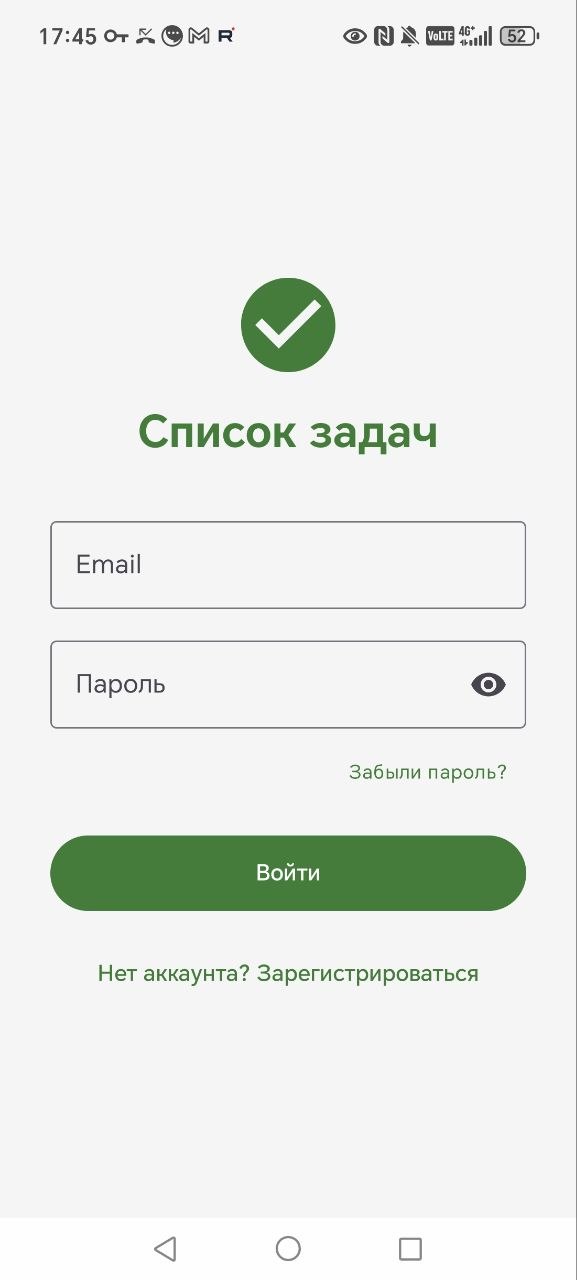
Open the app and tap "No account? Sign up". Enter your email, name, and password. After registration, a confirmation email is sent — verify your address.
Sign in
Enter your email and password on the sign-in screen. If you forgot your password, tap "Forgot password?" and follow the instructions in the email.
2. Task lists
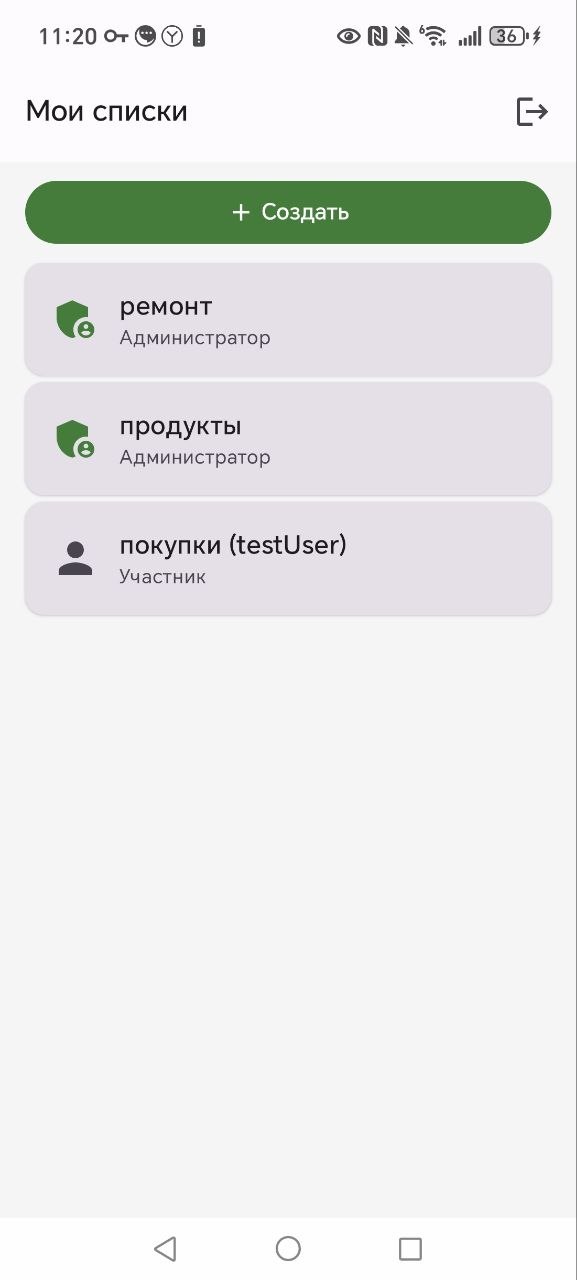
Lists are containers for tasks. You can create several lists for different purposes: "Groceries", "Renovation", "Work".
Creating a list
On the "My lists" screen, tap the "+ Create" button. Enter a name and tap "Create". You automatically become the list administrator.
Choosing a list
Tap a list name to open its tasks. To switch between lists, tap the ↔ icon at the top of the screen.
Deleting a list
Only the administrator can delete a list. Open the menu (⋮) → "Delete list". All tasks and members will be removed.
3. Working with tasks
Creating a task
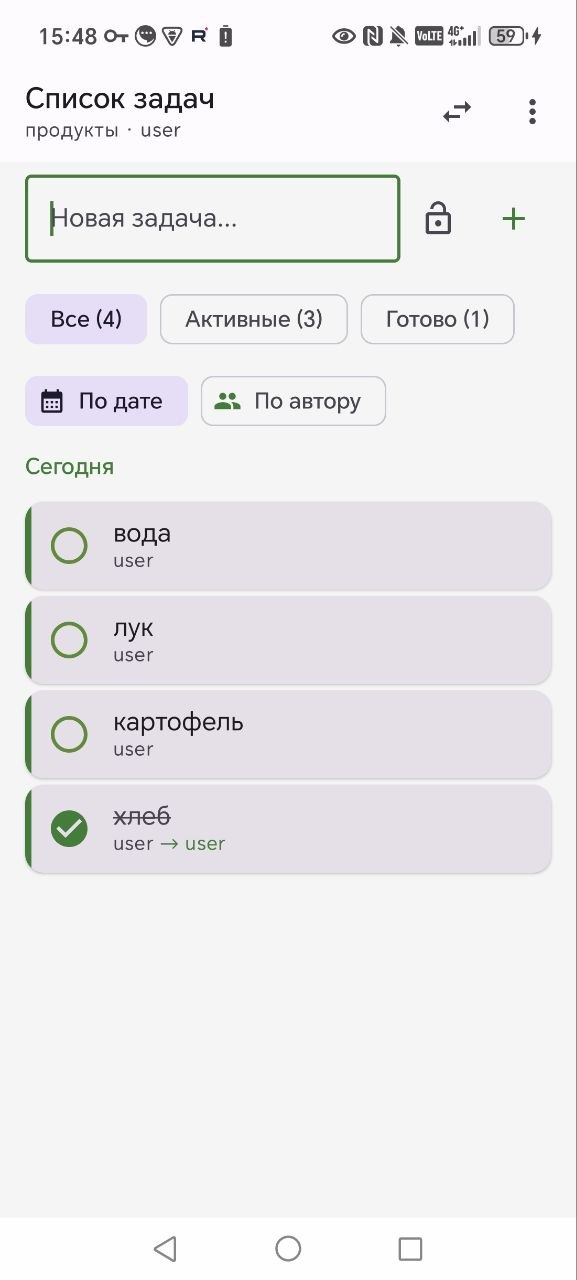
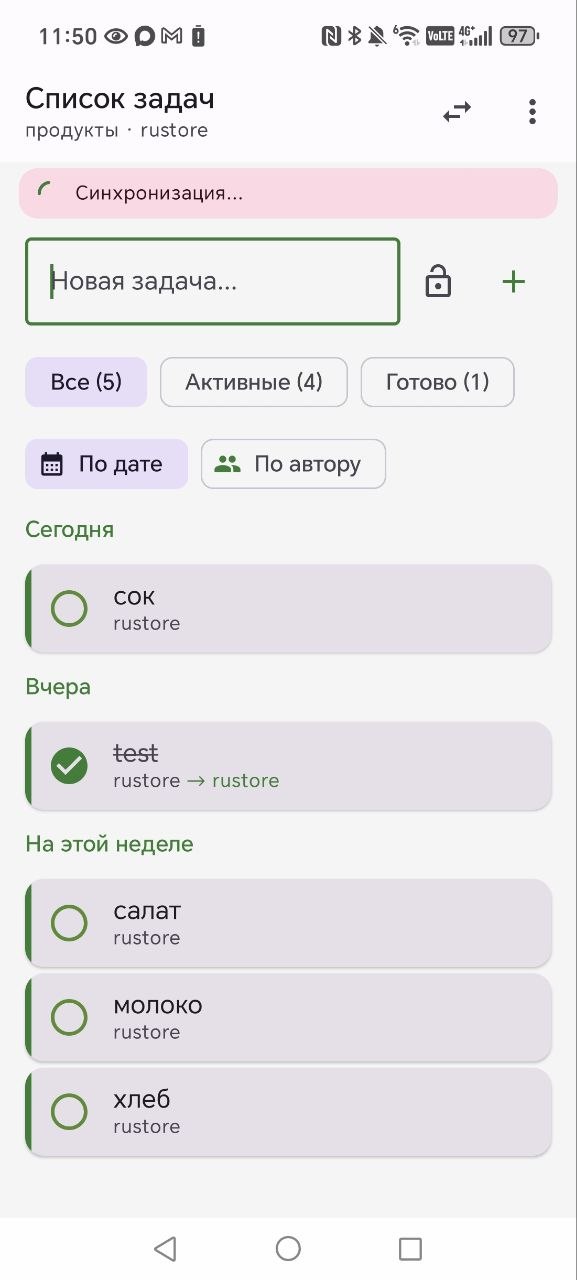
Enter text in the "New task..." field and tap +. The task appears in the list.
Completing
Tap the circle to the left of a task to mark it as done. Tap again to uncheck it.
Renaming
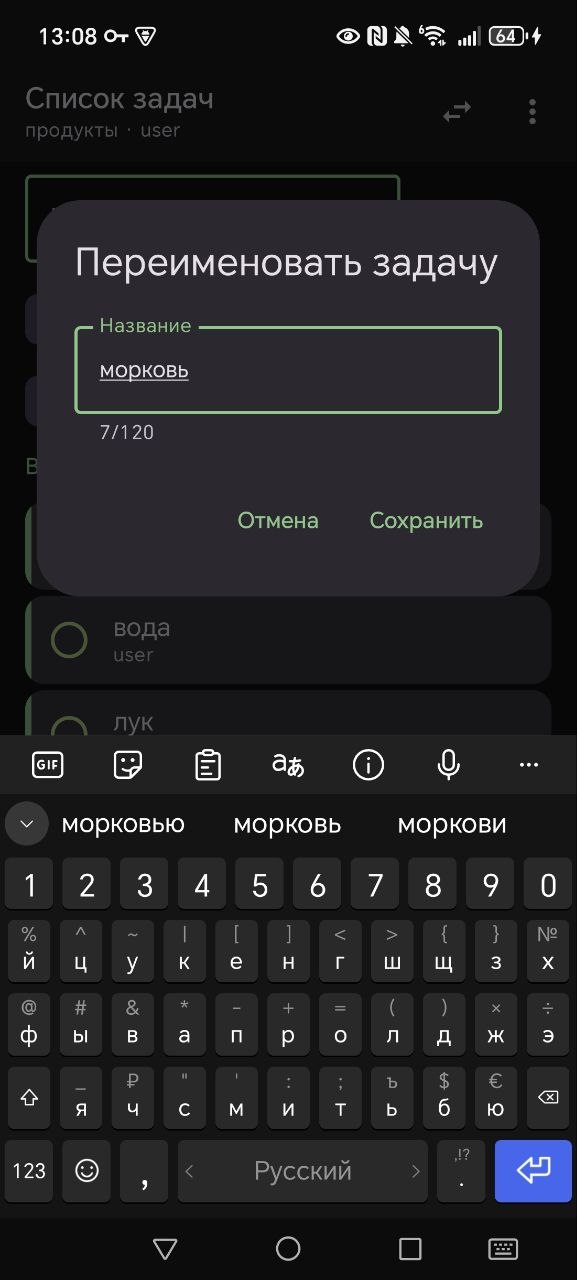
Long-press a task to open the rename dialog.
Deleting
Swipe left on a task to delete it.
Private tasks
Tap the lock icon next to the input field before creating a task. A private task is visible only to you, even in a shared list.
4. Collaboration
Inviting members
The list administrator can invite other users. Open the menu (⋮) → "Invite to list". An invite link valid for 24 hours will be generated.
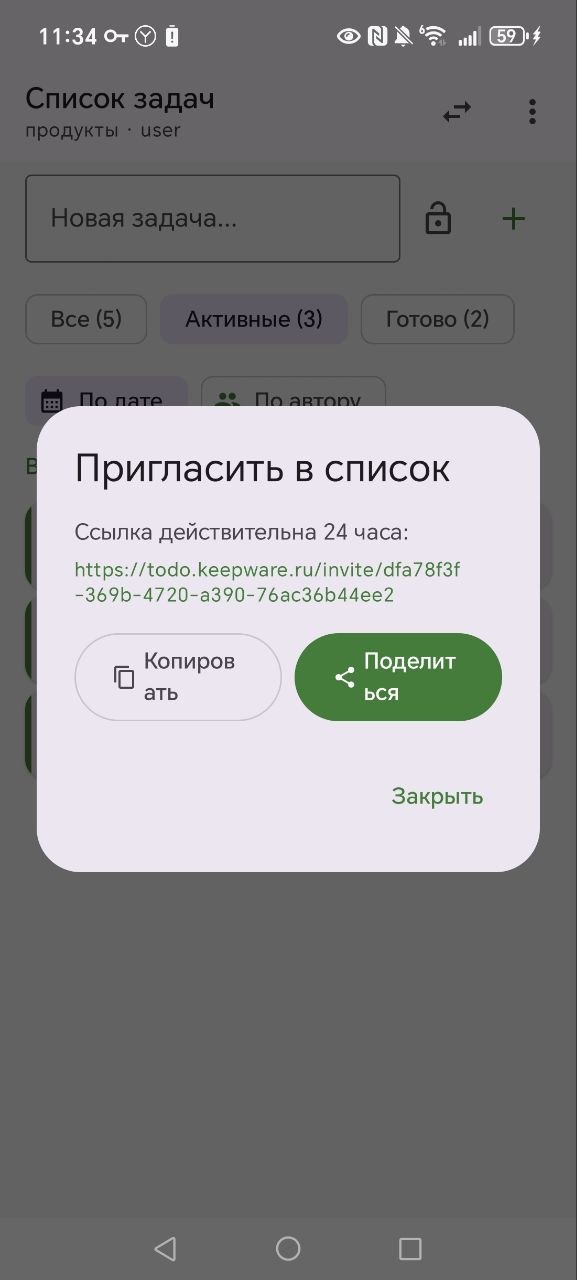
Send the link via a messenger ("Share" button) or copy it ("Copy" button).
Accepting an invite
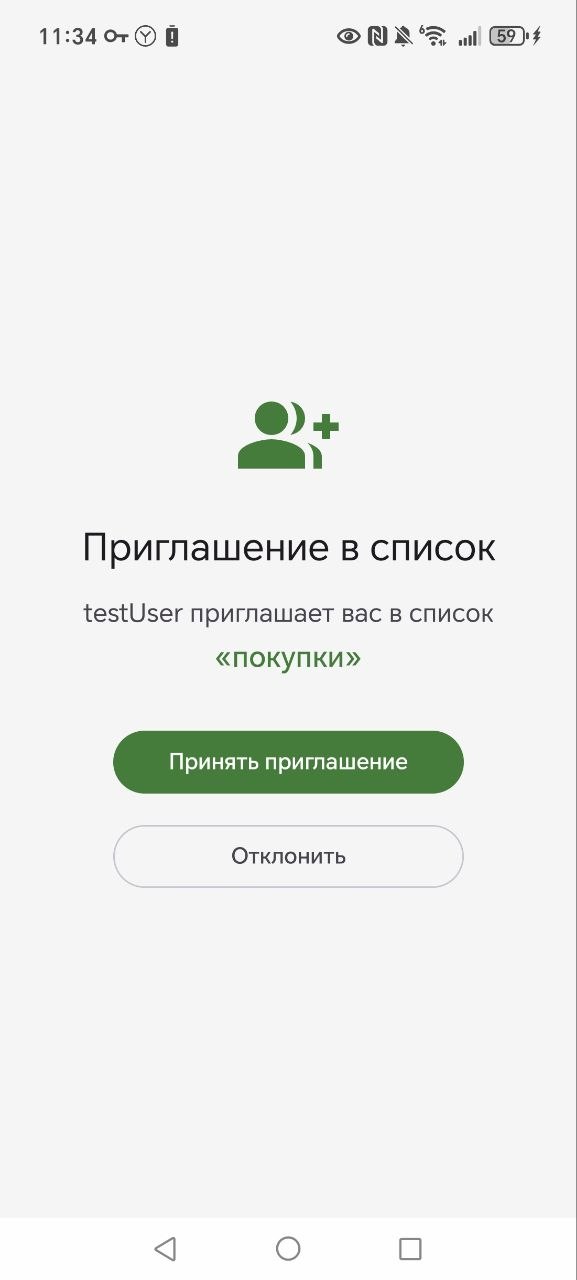
The recipient taps the link — the app opens on the invite screen. Tap "Accept invitation".
Roles
- Administrator — the list creator. Can invite members and delete the list.
- Member — can create, complete, and delete tasks.
Leaving a list
Menu (⋮) → "Leave list". Your private tasks in this list will be deleted.
5. Filters and grouping
Filters
Filters are shown above the task list:
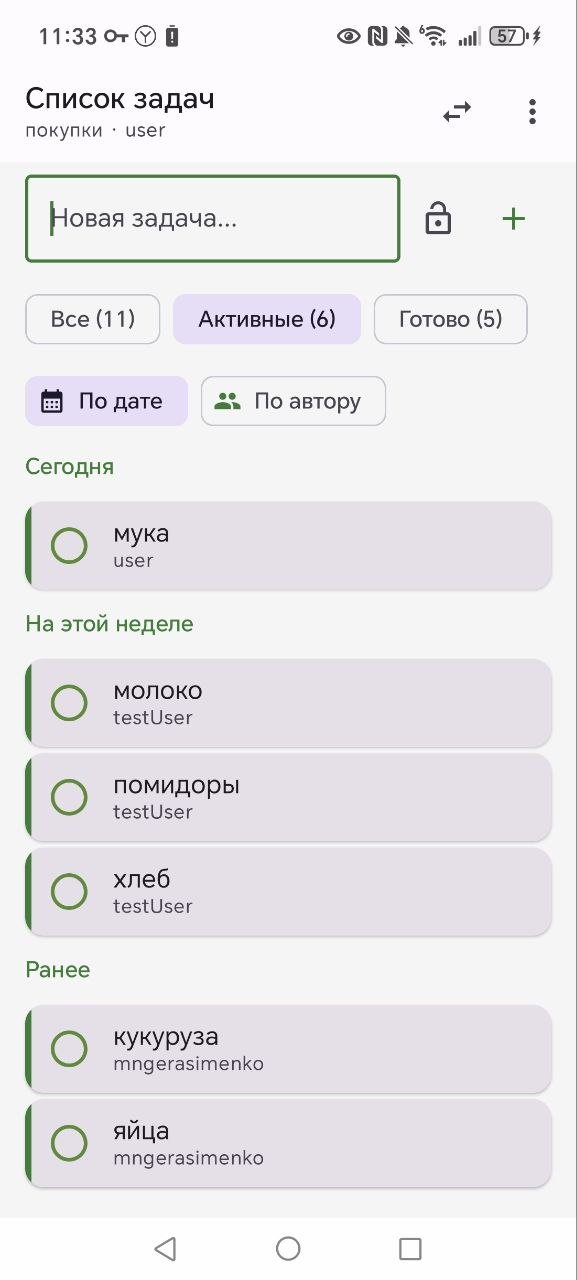
- All — every task
- Active — unfinished (default)
- Done — completed
Grouping
Tasks can be grouped by date or by author:
- By date — Today, Yesterday, This week, Earlier
- By author — tasks are grouped by creator's name
6. Personalization
App color
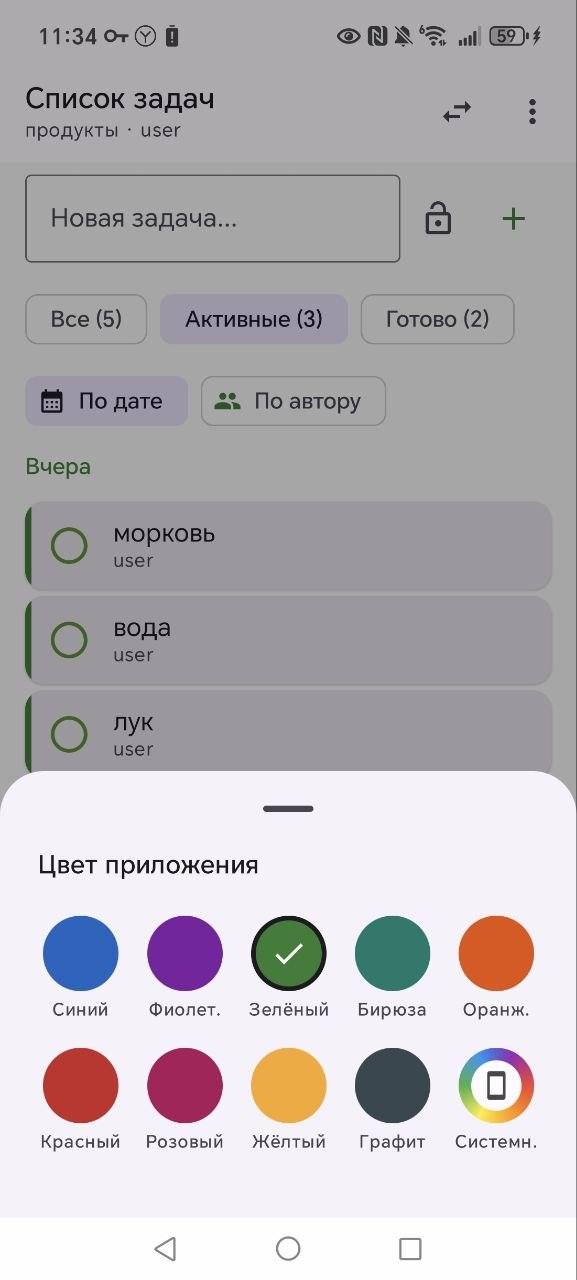
Menu (⋮) → "App color". Choose one of 9 colors or "System" (Material You — colors adapt to your wallpaper, Android 12+).
Dark theme
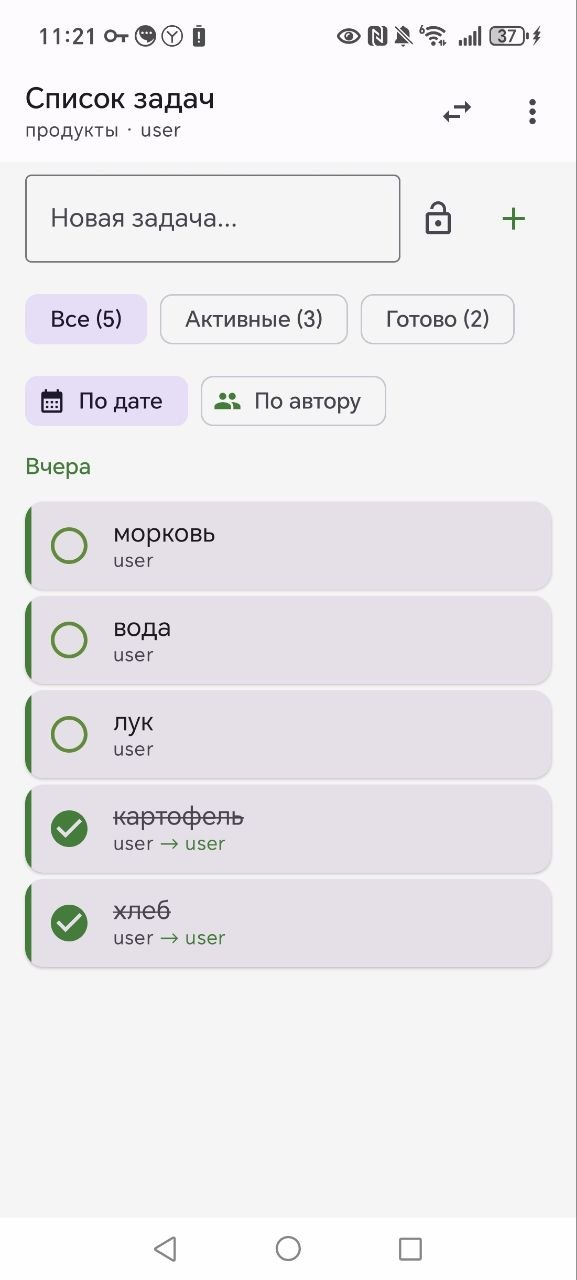
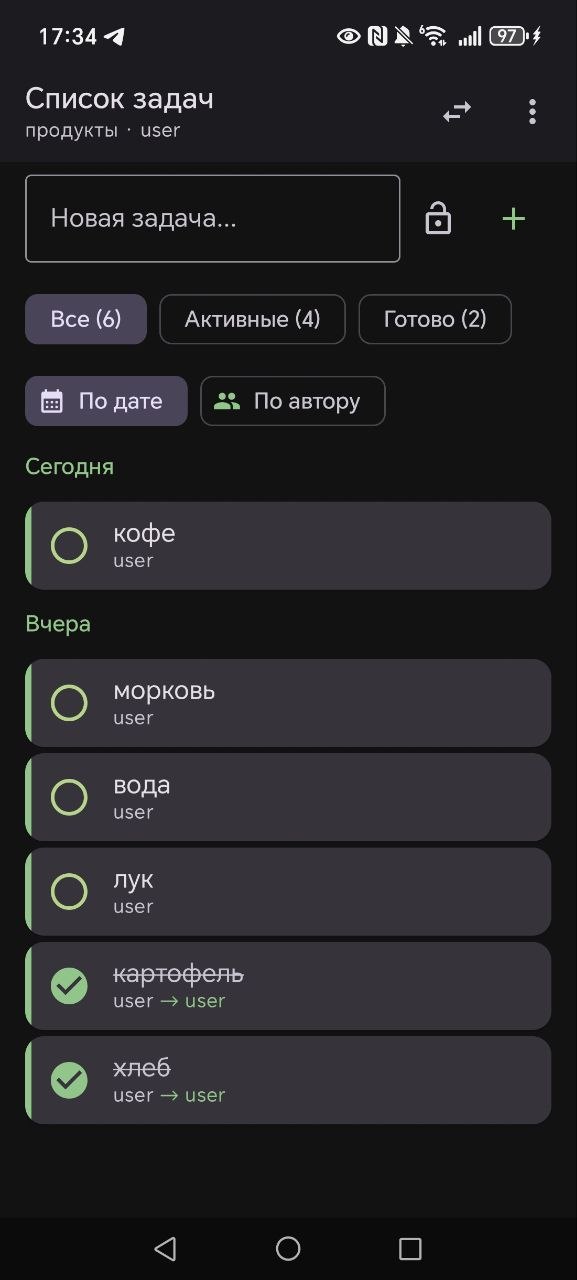
The app automatically switches between light and dark theme based on system settings.
7. Offline mode
The app works without an internet connection. You can create and complete tasks — they are saved locally.
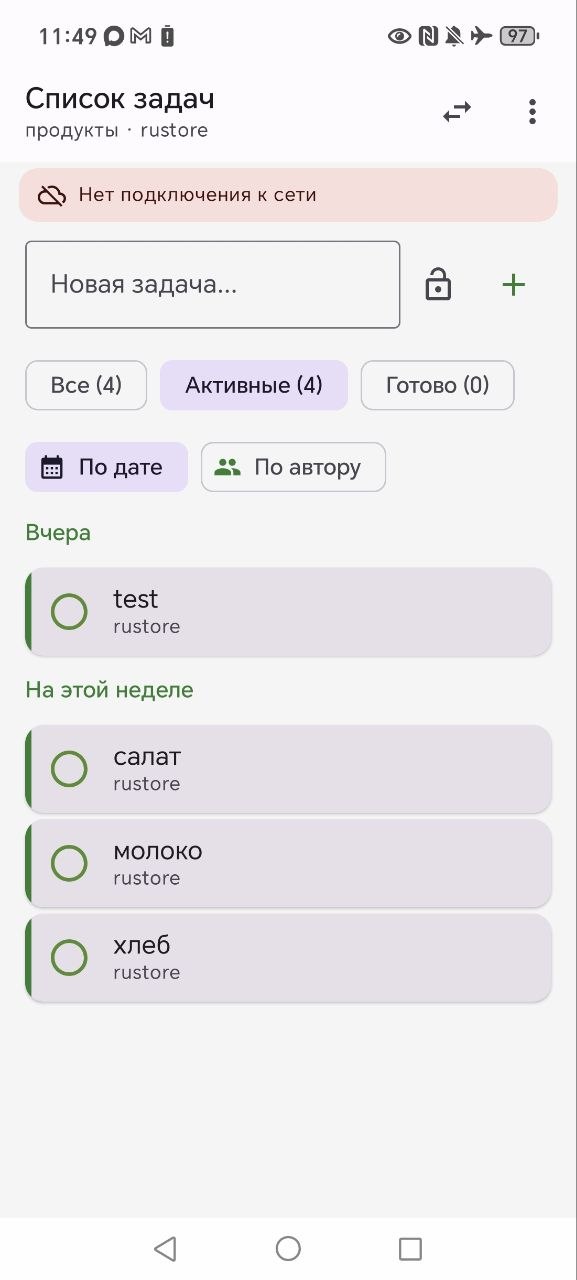
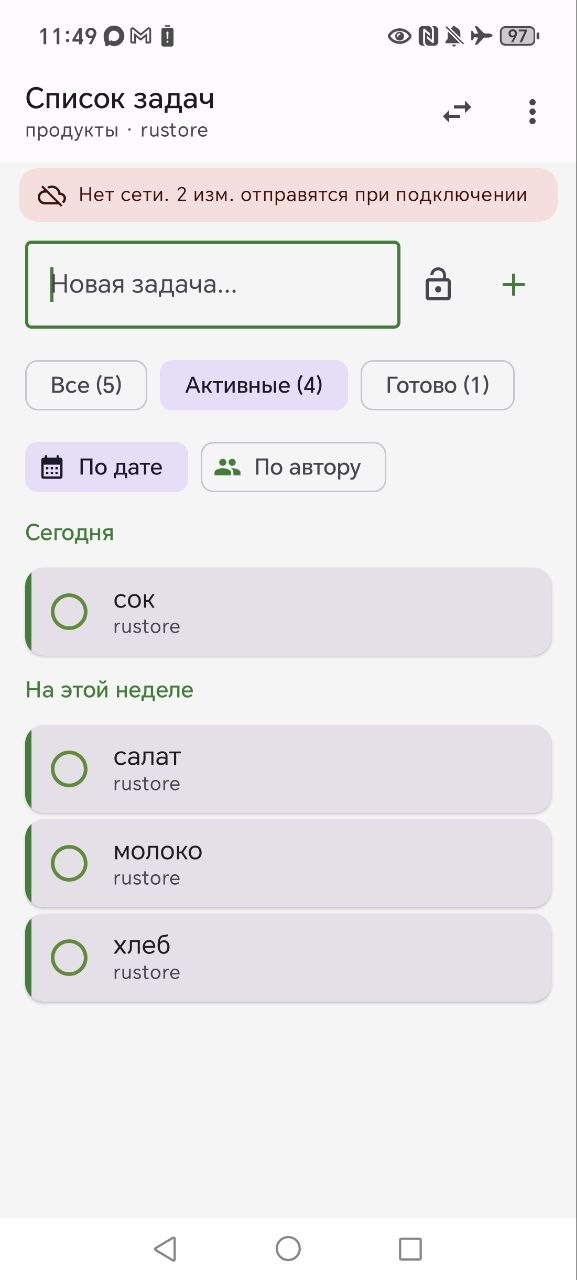
When the network is available, data is automatically synchronized with the server. The status is shown at the top of the screen:
- "No network connection" — working offline
- "No network. N changes will sync when connected" — there are unsaved changes
- "Synchronizing..." — sending changes to the server
8. Notifications
The app sends push notifications about events in shared lists:
- New task — when a member adds a task to a shared list
- Task completed — when a member marks a task as done
- New member — when someone joins your list
9. Web version
All your lists and tasks are available in your browser at todo.keepware.ru. Data syncs automatically — start on your phone and continue in the browser.
10. Account and security
Email verification
After registration, an "Email not verified" banner appears on the screen. Tap "Resend" — a confirmation email will be sent. Tap the link — your email will be verified inside the app.
Password reset
On the sign-in screen, tap "Forgot password?". Enter your email — you will receive a link to set a new password.
Sign out
Menu (⋮) → "Sign out".
Deleting an account
Menu (⋮) → "Delete account". All your data will be permanently removed. Public tasks in shared lists will remain under the name "Deleted user".
11. App menu
Tap the three dots (⋮) in the top-right corner of the tasks screen:
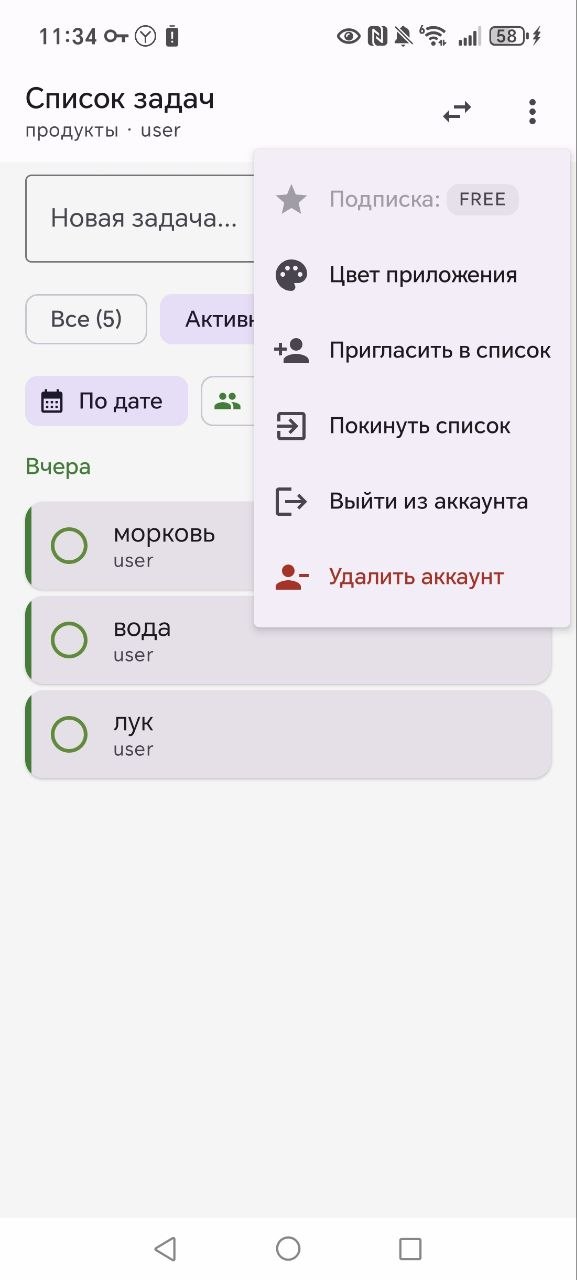
- Subscription — current subscription type (FREE / PRO)
- App color — choose a color theme
- Invite to list — generate an invite link (administrator only)
- Leave list — exit the current list
- Delete list — remove the list (administrator only)
- Sign out — leave the app
- Delete account — permanent removal